
How to Block Someone on Gmail
It could be important to block someone on Gmail when you want to avoid unwanted emails, spam, or annoying messages. If you’re wondering how to block someone on Gmail, this article is for you, as it guides you through easy steps. Getting unwanted emails every day can be really frustrating. Thankfully, Gmail makes it very easy to block any sender in just a few clicks.
Why need to block someone on Gmail?
- Avoid unwanted contacts – Once you block someone, they can no longer reach your inbox. Their emails will no longer bother you.
- Stop spam or annoying messages – Some senders keep sending promotional or junk emails. Blocking them helps keep your mailbox free from unwanted clutter.
- Keep your Inbox clean – A clean inbox means you can find important emails quickly without having to scroll through lots of unwanted messages.
How to block someone on Gmail (Desktop)
Here are the steps to Block someone on GMail in a few steps:
Visit Gmail on your desktop browser and sign in to your account. You can use any browser like Chrome, Firefox, or Edge. Make sure you are logged in with the correct Gmail account
Go to the Inbox or All mails section on the left side. You can also use the search bar at the top to find the email from that particular person.
- Click on the email you want to block. This will open the full email on your screen.
- Click on the email address you want to block. When you open the email, look at the sender’s name at the top. You will see their email address displayed there.
- After opening an email, go to the three dots drop-down menu at the top right of the email. This three-dot icon is also known as the “More” icon. It looks like three vertical dots and is placed in the top-right corner of the open email.
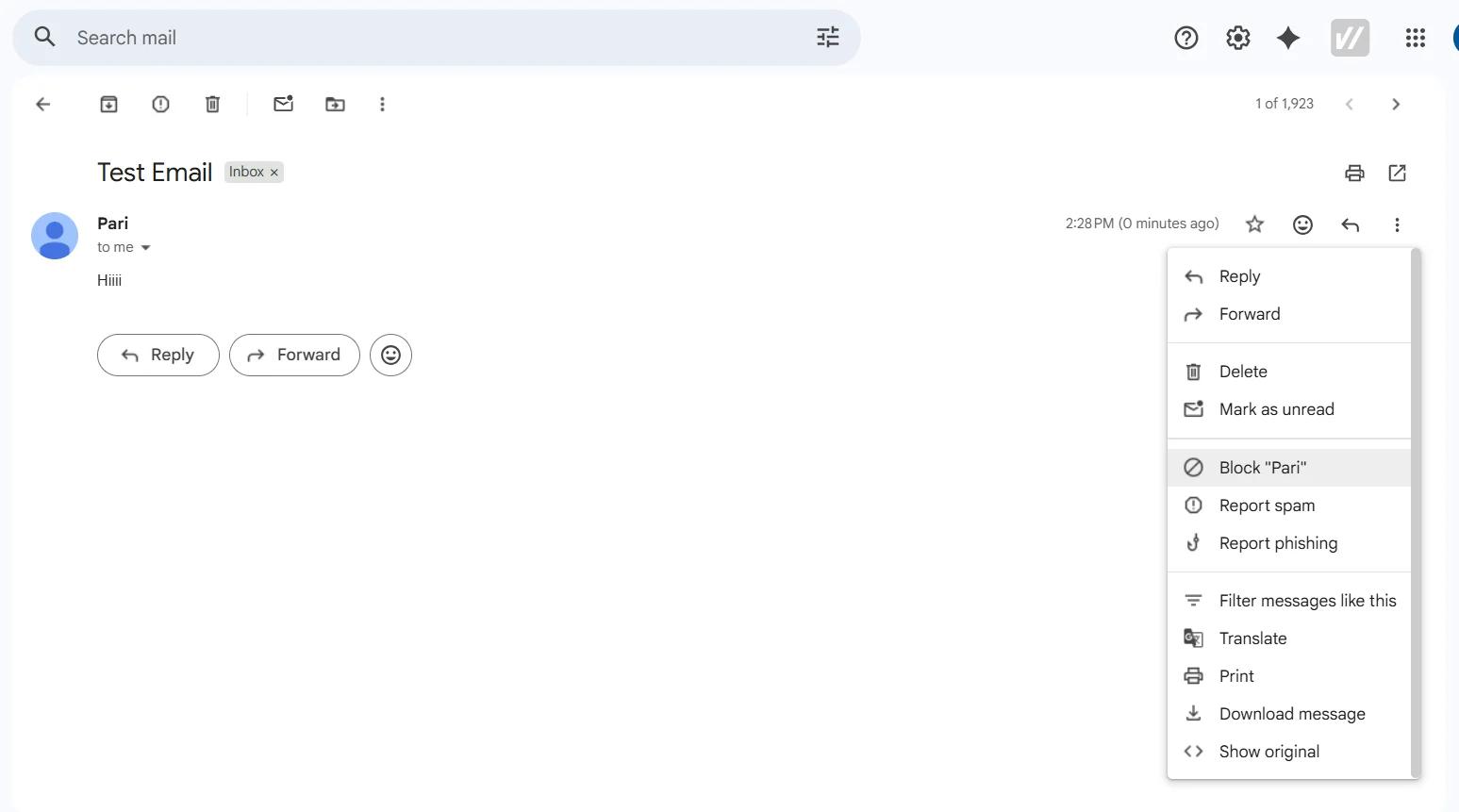
- Click on the block (Sender’s name) option from the drop-down menu, then the confirmation pop-up will open, and click on confirm. A pop-up message will appear saying “Block this email address”. Just click the “Block” button to confirm. That’s it – the sender is now blocked.

Now, you will not receive any emails from blocked email addresses in your Inbox; they will automatically be directed to the spam folder. We can easily block someone on Gmail. It is very easy, and there is nothing complicated about it. You do not need to do anything else.
That’s how simple it is to block someone on Gmail using your desktop. Once blocked, that person will no longer be able to land in your inbox. If they send you emails, those will go straight to the spam folder and you will not be notified about them.
How to block someone on Gmail (Android or iPhone)
- Launch your Gmail app on your Android phone or iPhone. Make sure you have a stable internet connection before opening the app.
- Log in to your account. You are not logged in yet. Enter your email address and password if required. If you are already logged in, you can skip this step.
- Tap on the email address of the person in the Inbox or All mail folder that you want to block. Once you tap on the email, it will open on your screen.
- After opening the email, tap the three dots (more options) icon at the top right. This icon is located at the top right corner of the opened email, just like the desktop version.
- Click on the block (Sender’s name) option from the drop-down menu, then the confirmation pop-up will open, and click on confirm. Tap “Block” when the pop-up appears to confirm the action.
- Now, future emails from this sender will not appear in your Inbox, but will go directly to the spam folder. This is the same for both Android and iPhone users.
That’s how to block someone on Gmail using your phone effectively. The whole process takes less than a minute, and you can do it from anywhere on your phone.
How to unblock someone on Gmail (Desktop)
If you ever change your mind, you can easily unblock the person: The unblocking process is just as simple as blocking. Just follow the steps below.
- Go to settings in the Gmail account. Click on the gear icon at the top right corner of Gmail, then click on “See all settings”.
- Select the “Filters and Blocked Addresses” tab.
- You will get a list of blocked people there. All the email addresses you have blocked will be listed here.
- Click “unblock” next to the email address.
- Confirm by clicking “unblock” again.
How to unblock someone on Gmail (Phone)
- Go to the settings option. Open the Gmail app and tap the three horizontal lines (hamburger menu) at the top left. Then scroll down and tap “Settings”.
- Select your Gmail account, which appears at the top of the account list.
- Click on Blocked users. Here you will see a list of all blocked senders. Find the person you want to unblock.
- Click “unblock”. A confirmation message will appear. Tap “Unblock” to confirm, and that person will be unblocked from your Gmail account.
If you want to increase your privacy and security even more, you can also explore how to use Confidential Mode in Gmail to protect your emails.
Blocking someone on Gmail using a desktop and phone is straightforward. Following the simple steps of how to block someone on Gmail can help you keep your Inbox spam-free and ensure a better experience.
It is always a good idea to manage your inbox well. Blocking unwanted senders is one of the best ways to stay organized and keep your Gmail experience pleasant.


